Step 1: Choose one of the following options:
- If you’re adding images to your inventory SKUs, click the navigation menu and select Products > Inventory.
- If you’re adding images to your catalog products, click the navigation menu and select Products > Items.
Step 2: A list of all your SKUs is displayed on the page. Click the SKU link to see the SKU's details.
Step 3: At the top of the item details page, click Add Media.
Note: To add media to your products, make sure the Beta toggle at the top of the page is not enabled.

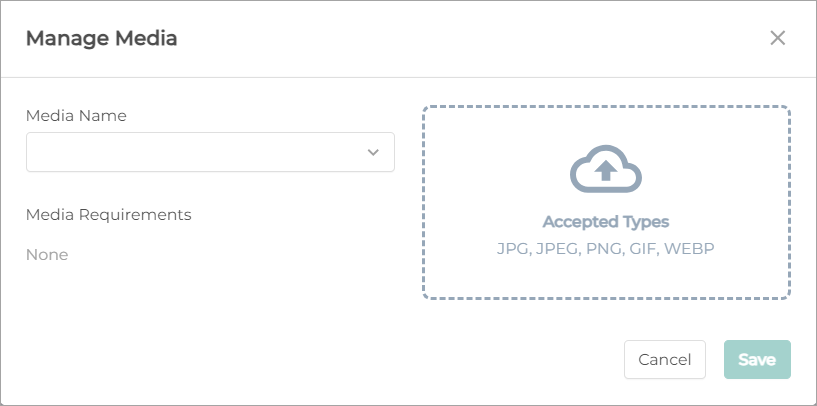
Step 4: On the Manage Media window, select a Media Name, click the arrow to browse to the file, then click Save.
Note: Once saved, you will not be able to edit the images. You must remove the image first and then add the new image.